Automatic tracking & pause
Track foreground-window changes and pause automatically on Windows lock, screensaver or sleep. Pause or resume manually from the tray or with Ctrl+P.
Local activity tracking
See where your time went today.
Automatically track app and website usage from the Windows tray. Review your day with timelines and charts, with activity data kept on your PC.
Installers and source code are currently private.
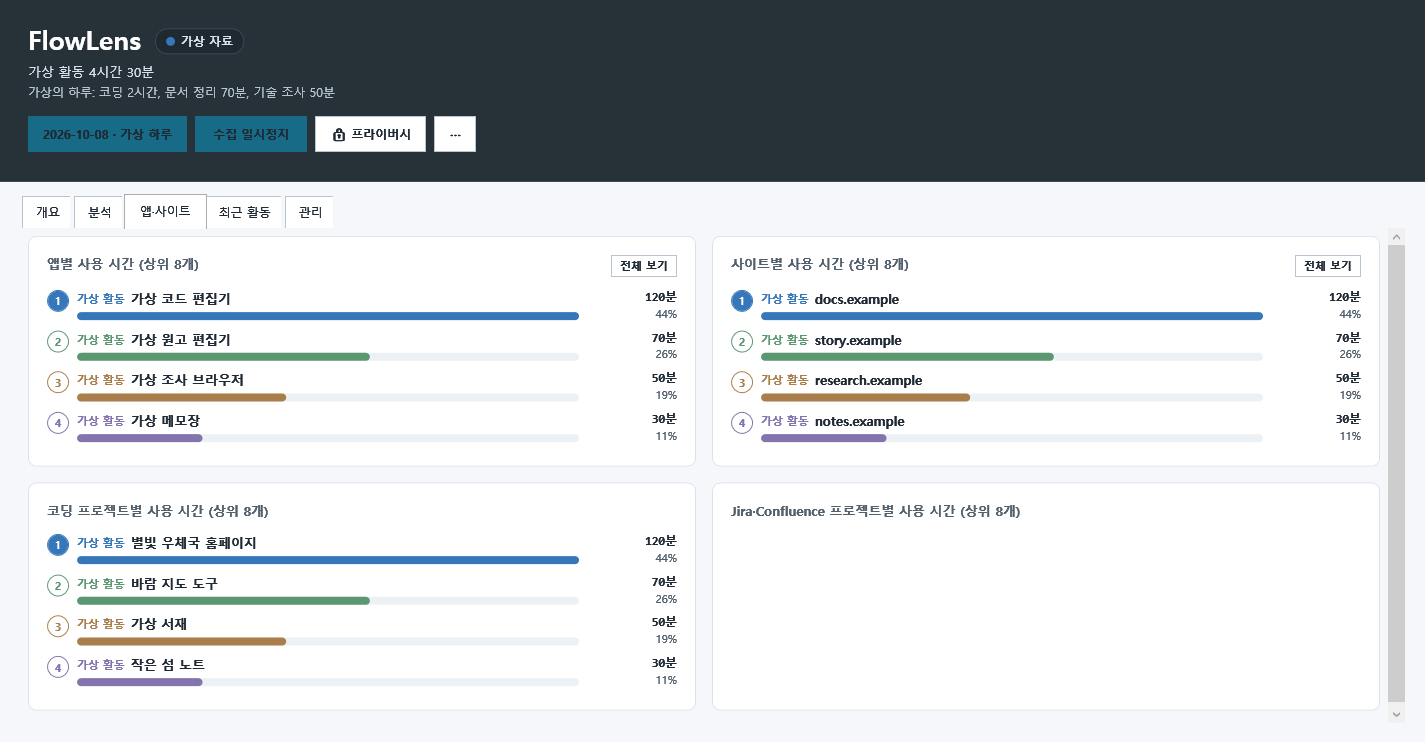 View larger
 Local activity tracking
An activity journal that records foreground apps and browser domains without manual timers. Open its tray dashboard when needed to review time spent coding, writing documents, researching and more.
WHAT YOU CAN DO
Track foreground-window changes and pause automatically on Windows lock, screensaver or sleep. Pause or resume manually from the tray or with Ctrl+P.
View the day's activity on a colored timeline and group nearby sessions into work blocks. See recorded time, leading categories and window-switch counts.
Explore category, app, domain, hourly and weekday usage with donut and bar charts. Select dates or ranges and drill into details.
Classify activity into 11 categories including coding, documentation, research and entertainment. Add or edit app/site rules and search or filter recent activity.
Review VSCode workspace and Jira/Confluence project time. Export ranges to HTML, Markdown or CSV, and weekly reports with previous-week comparisons to Markdown or HTML.
Keep records in local SQLite without transmitting them. Keystrokes, screenshots, credentials and full URLs are not stored; window titles are masked.
IN YOUR EVERYDAY LIFE
Review the timeline and app statistics after working on a personal project. Adjust app/site classification rules as needed. Active-window records do not directly measure focus or results.
Choose dates or periods to inspect hourly and weekday statistics. Use the patterns as a reference when planning your next week.
Save weekly reports with changes from the previous week as Markdown or HTML, and keep them alongside your own reflections.
YOUR FIRST STEPS
This illustrates the program’s workflow. Installation files and source code are not publicly available yet.
Launch the app to start recording from its tray icon.
Double-click the tray icon to open the dashboard.
Choose dates or ranges and customize app/site categories.
Save reports locally or pause tracking from the tray.
BEFORE YOU START
THINGS TO KNOW
The database is stored at %LOCALAPPDATA%\FlowLens\flowlens.db, with automatic cleanup after 90 days. App names, masked titles, domains, times, categories and minimal project identifiers are recorded.
Domain extraction supports Chromium browsers such as Chrome and Edge. Firefox may provide app-only records depending on the environment.
Closing the dashboard leaves tray tracking active. Use Exit in the tray menu to stop the application.
Information checked on October 8, 2026, against repository documentation. Availability and requirements may change.
Not publicly released
This program is currently private. Source code and installation files are not publicly available. Download information will be provided here when a public release is ready.